


Keeping JavaScript/TypeScript projects up-to-date can be a challenge, especially when it’s time to upgrade a bunch of npm packages or adopt the latest frameworks. We’ve heard from many JS/TS developers that modernizing an older app (upgrading dependencies, fixing breaking changes, etc.) is often tedious and time-consuming. To help with this, we’re excited to introduce the JavaScript/TypeScript Modernizer, a new AI-assisted tool in Visual Studio Code. This Modernizer uses GitHub Copilot under the hood to upgrade your JavaScript or TypeScript apps, guiding you through code updates and package upgrades step by step. It’s like having an AI pair programmer dedicated to updating your project, helping reduce the manual effort and potential errors during upgrades.
What does the JS/TS Modernizer do? In a nutshell, it analyzes your project (looking at files like package.json), suggests an upgrade plan, and then automatically updates your npm packages to their latest versions. As it upgrades libraries, it also helps apply any necessary code changes to accommodate breaking changes or new APIs. All of this happens through an interactive Copilot Chat experience in VS Code. The tool will walk you through the changes and ask you questions or confirmation if needed, guiding you through each stage of the process (from updating dependencies to fixing code). The goal is to simplify modernization by letting the AI do the heavy lifting (updating files, running installs, suggesting code fixes) while you supervise and approve the changes. This means you can upgrade to modern JavaScript/TypeScript practices and latest packages much faster and with more confidence.
Download the extension
The JS/TS Modernizer is a part of the preview version of the GitHub Copilot App Modernization VS Code Extension when installed in VS Code. Install it with the link below.
As we improve the JS/TS Modernizer we will bring it to the release version of VS Code.
Getting Set Up
Before you can use the JS/TS Modernizer, you’ll need to make sure a few things are ready:
- Node.js and npm are installed – You probably already have Node/npm installed but if not, install them from npmjs. The modernization process will invoke Node/npm commands under the hood.
- GitHub Copilot access in VS Code – The Modernizer leverages GitHub Copilot, so you must be signed in with an account that has Copilot enabled in VS Code. If you haven’t set up Copilot in VS Code yet, follow the Set up GitHub Copilot in VS Code guide to sign in. (If you don’t have a subscription, GitHub Copilot Free may be available.)
- Install the GitHub Copilot App Modernization (Preview) extension – The JS/TS Modernizer is part of the preview version of the GitHub Copilot app modernization extension for VS Code. You can download and install this extension from the VS Code Marketplace. Once installed, Visual Studio Code will have a new “GitHub Copilot App Modernization” view that we’ll use in the steps below.
- Enable the experimental Modernizer setting – Because the JavaScript/TypeScript modernization feature is in preview, you need to explicitly enable it in VS Code’s settings. Open your VS Code settings (you can use File > Preferences > Settings (JSON) to edit the JSON directly. Then add the following line to your settings JSON file
{
    "appmod.experimental.task.typescript.upgrade": true
}- This flag tells the extension that you want to turn on the JavaScript/TypeScript upgrade capabilities.
- After saving this setting, restart VS Code to ensure the change takes effect.
Once you have Node.js, Copilot, and the extension set up (and the feature flag enabled), you’re ready to modernize your first project!
Modernizing a JS/TS App: Step-by-Step
Using the JS/TS Modernizer is straightforward. Let’s walk through the process:
- Open your project in VS Code. In VS Code, open the folder containing your JavaScript or TypeScript application. Make sure this folder contains a package.json file with your project’s dependencies (the tool uses this to know what to upgrade). The tool will not create any branches or commits. You may want to switch to a different branch at this time.
- Open the GitHub Copilot app modernization panel. In the VS Code Activity Bar (the sidebar on the left), click the GitHub Copilot App Modernization icon/pane. This is the panel provided by the extension where modernization tasks are launched. (If you just installed the extension, it might already be visible; it typically looks like a Copilot or upgrade icon on the left.)
- Click Upgrade npm Packages. In the Copilot app modernization panel, you should see a button labeled “Upgrade npm Packages”. Click this button to start the modernization process for your TS/JS app. (If you don’t see this button, double-check that your workspace has a package.json, the tool shows this option only when a package.json is detected.)
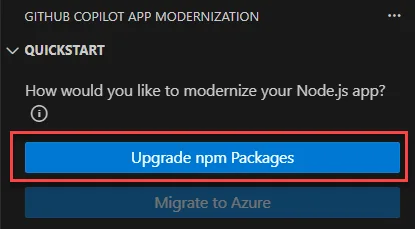
- Follow the Copilot chat prompts. Once you click the upgrade button, the extension will initiate the modernization workflow. You’ll see GitHub Copilot Chat open up (usually on the right of VS Code). The Copilot modernization agent will analyze your project and propose an upgrade plan. For example, it might identify outdated packages that need updating. It will then begin applying updates. Copilot will update your package.json with new version numbers, run npm install (or npm update under the covers), and start suggesting any code changes required. Throughout this process, messages will appear in the chat explaining what’s happening. The Copilot agent may ask you a few questions as it runs. You can respond in the chat to guide it.
- What’s happening behind the scenes? The Copilot modernization agent is effectively performing a series of upgrade tasks on your project, driven by AI. It checks for outdated dependencies, updates them, and then addresses resulting issues. For example, if a new version of a library has changed an API your code uses, the agent (via Copilot) can suggest code modifications to fix the usage. All of this is done in an iterative loop within the chat: analyze the project, make a change, verify it (e.g. run a build or check for errors), and repeat. The extension uses Copilot’s “agent mode” to orchestrate these steps, so you’ll see it explaining each step (“Upgrading package X from v1 to v2”, “Fixing import statements for updated API,” etc.). It’s a bit like having a smart script or an assistant walk you through a complex upgrade, but you remain in control, since you can always intervene via the chat if needed. The Modernizer will continue this process until it believes the upgrade is complete (for example, all packages updated and no obvious errors remain).
- Review and finalize changes. After the modernization run finishes, be sure to review the changes that were made. The tool will have updated files in your workspace (for instance, the package.json and possibly some source files). You can inspect the diff of these changes using source control view in VS Code. (Nothing is auto-committed; you have the chance to accept or adjust the changes.) Run your build or tests to double-check everything is working. The Copilot chat may also summarize what was done or if there are any follow-up steps for you. Once you’re satisfied, you can commit the updated code. You’ve just modernized your app with substantially less effort than doing it all by hand!
Known Issues and Tips
As of this preview release, there are a couple of things to be aware of:
- One project at a time: If you have a workspace with multiple JS/TS projects (for example, a monorepo or multiple package.json files in subfolders), the Modernizer will currently target only one of them (usually the first it detects). In the current preview, it’s best to open and upgrade one project folder at a time. If you need to modernize several projects individually, open each one separately in VS Code and run the tool for each. Support for multi-project workspaces may improve in future updates.
- Experimental feature: The JS/TS Modernizer is still in preview, meaning our team is actively refining it. You might encounter some rough edges or cases where the tool can’t fully modernize a complex app. If the tool gets stuck or something isn’t working as expected please let us know.
Try It Out Today
The JavaScript/TypeScript Modernizer can save you time and help eliminate the drudgery of manual upgrades. Instead of combing through release notes and fixing broken imports alone, you have an AI assistant ready to do much of that work for you. This is part of our broader effort to bring GitHub Copilot-powered modernization tools to developers. We’re eager to expand and improve these capabilities based on your input.
Ready to modernize your app? Install the GitHub Copilot App Modernization (Preview) extension in VS Code, enable the JS/TS Modernizer as described above, and give it a try on one of your projects. We hope you find it useful for keeping your apps up-to-date with the latest and greatest.
What to do if you run into an issue?
If something is not working as expected during a TypeScript upgrade, you can use the following locations to diagnose the issue.
Check the TypeScript MCP Server Logs in VS Code
- Open the Command Palette.
- Run: MCP: List Servers.
- Select TypeScript Package Updater.
- Choose Show Output.
Look for the PROGRESS.md File
- If a file named PROGRESS.md exists, it will show detailed information about the current upgrade state.
- If the file is missing, this usually indicates an unexpected error.
Inspect the Local App Modernization Log Directory
If PROGRESS.md is missing or the results seem incorrect, you can find more detailed logs at <your user profile>/.ghcp-appmod/ts/logs/.
Providing Feedback
We’d love to hear your feedback and any issues you encounter. If you run into a bug or want to suggest an improvement, please let us know! You can email us at webtoolsoutreach@microsoft.com with details about the issue. Feedback is incredibly valuable to help us improve the Modernizer’s algorithms and coverage.
When reporting an issue with the JS or TS Modernizer, please include as much context as possible. This helps us diagnose problems faster. You can include:
- Any errors or warnings from the MCP server output.
- The contents of the PROGRESS.md file if it exists.
- Any relevant files under .ghcp-appmod/ts/logs.
- A short description of what you expected to happen and what actually occurred.
If the tool appears to be stuck or producing unexpected results, the logs described above will usually contain helpful clues.


I am trying it on my javascript project. Even after adding the flag, in the Copilot app modernization panel, I am not seeing a button labeled “Upgrade npm Packages”
Hello @Codewarrior,
Can you please reply with a list of the files in the top level of your project?
Something like:
Nice. Install to latest versions, and app doesn’t work. Revert back.
Can you describe what happened?
Trying this now!