


I’ve set up a lot of dev machines in my life. Traditionally, this takes a lot of time to get everything just right, but now there’s a faster way with WinGet Configuration files. Let me show you how to go from a fresh Windows install to a fully configured dev environment with a single command and how GitHub Copilot CLI can help you build these configs.
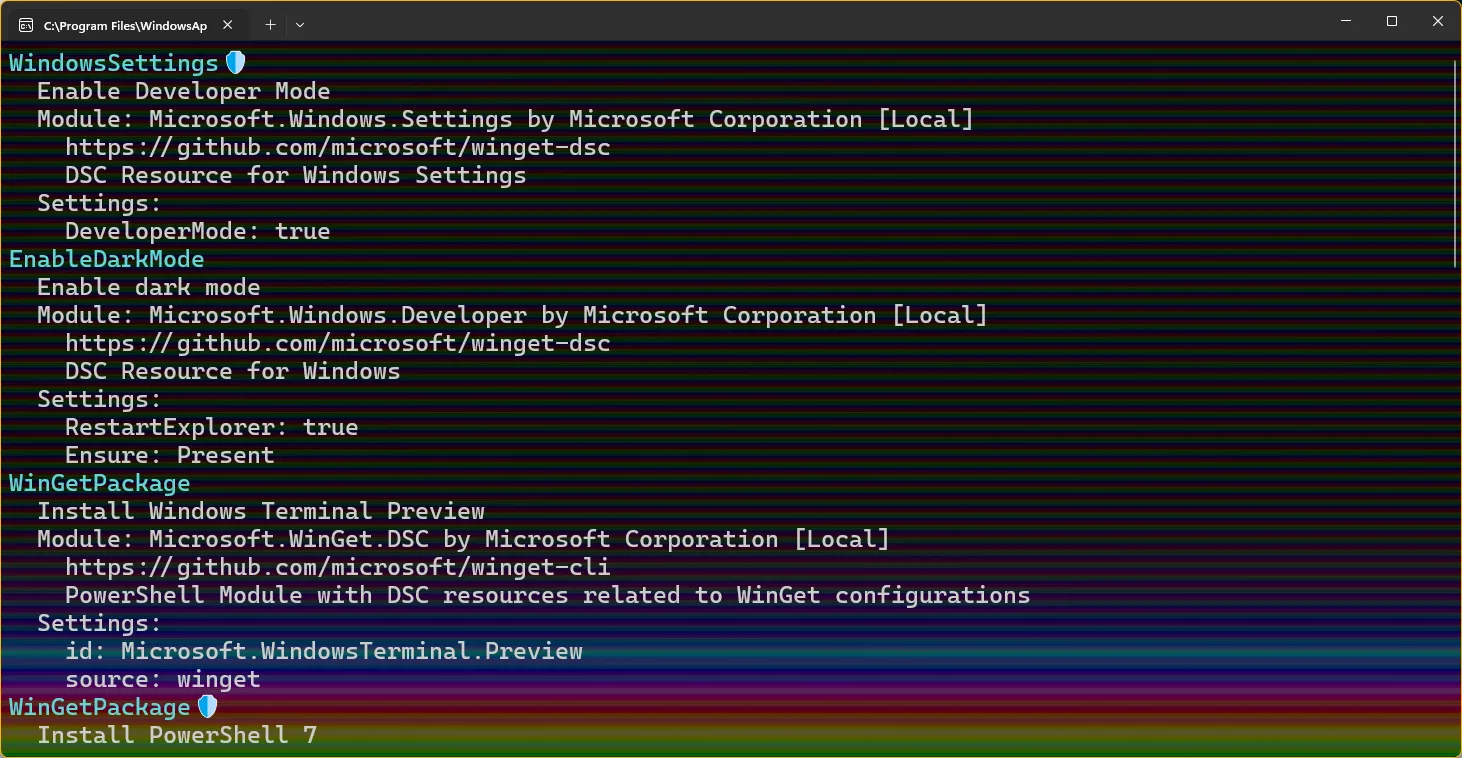
What is WinGet Configuration?
WinGet Configuration lets you describe your ideal dev environment in a YAML file, then apply it with one command. Instead of running a bunch of winget install commands manually, you declare what you want and let WinGet do the rest.
Getting started
Before you can use winget configure, you’ll need to install the WinGet DSC module. Open PowerShell as admin and run:
Install-Module Microsoft.WinGet.DSC -ForceOnce that’s installed, you can run configuration files with:
winget configure -f configuration.wingetWinGet reads your file, installs all your tools, configures your settings, and gets you ready to code.
The best part is that these configs are idempotent, which means you can run them multiple times and they’ll only change what needs changing. For example if you already have VS Code installed, it skips it and moves on.
Tip:
Add--accept-configuration-agreements to skip the confirmation prompts for automated scenarios.How is this different from WinGet import/export?
If you’ve used WinGet before, you might be thinking “wait, can’t I already do this with winget export and winget import?” This is a great question and they’re designed to solve different problems.
winget import/export creates a simple JSON list of installed packages:
# Export your installed packages
winget export -o packages.json
# Import on another machine
winget import -i packages.json
This works, but it only handles package installation. It’s basically a batch install script.
winget configure is much more powerful:
| Feature | import/export | configure |
| Install packages | ✅ | ✅ |
| Configure Windows settings | ❌ | ✅ |
| Enable Developer Mode | ❌ | ✅ |
| Install VS workloads | ❌ | ✅ |
| Set environment variables | ❌ | ✅ |
| Define dependencies | ❌ | ✅ |
| Check OS requirements | ❌ | ✅ |
| Run PowerShell DSC resources | ❌ | ✅ |
Think of import/export as a grocery list and configure as a complete recipe. The grocery list tells you what to buy, but the recipe tells you what to buy and how to put it all together.
For simple app installation scenarios, winget import is great. But if you want a fully configured dev environment with Developer Mode enabled, VS workloads installed, and settings configured, use winget configure.
Your first configuration file
Let’s start simple. Create a file called dev-setup.winget:
# yaml-language-server: $schema=https://aka.ms/configuration-dsc-schema/0.2
properties:
  configurationVersion: 0.2.0
  resources:
    - resource: Microsoft.WinGet.DSC/WinGetPackage
      directives:
        description: Install Visual Studio Code Insiders
        securityContext: elevated
      settings:
        id: Microsoft.VisualStudioCode.Insiders
        source: winget

    - resource: Microsoft.WinGet.DSC/WinGetPackage
      directives:
        description: Install Git
        securityContext: elevated
      settings:
        id: Git.Git
        source: winget

    - resource: Microsoft.WinGet.DSC/WinGetPackage
      directives:
        description: Install Node.js LTS
        securityContext: elevated
      settings:
        id: OpenJS.NodeJS.LTS
        source: winget

    - resource: Microsoft.WinGet.DSC/WinGetPackage
      directives:
        description: Install Windows Terminal Preview
      settings:
        id: Microsoft.WindowsTerminal.Preview
        source: winget
Run it with:
winget configure -f dev-setup.wingetWinGet prompts you for admin approval once, then handles all the installations. Go grab a coffee and come back to a configured machine. ☕
Adding Windows settings
You can do more than install packages, you can configure Windows itself. Here’s how to enable Developer Mode and dark mode automatically:
- resource: Microsoft.Windows.Settings/WindowsSettings
  directives:
    description: Enable Developer Mode
    allowPrerelease: true
    securityContext: elevated
  settings:
    DeveloperMode: true

- resource: Microsoft.Windows.Developer/EnableDarkMode
  directives:
    description: Enable dark mode
    allowPrerelease: true
  settings:
    Ensure: Present
    RestartExplorer: true
Using assertions for requirements
Assertions let you check system requirements before running your config. For example, you can verify the machine meets a minimum OS version:
properties:
  configurationVersion: 0.2.0

  assertions:
    - resource: Microsoft.Windows.Developer/OsVersion
      directives:
        description: Require Windows 11 22H2 or later
        allowPrerelease: true
      settings:
        MinVersion: '10.0.22621'

  resources:
    # Install your tools...
If the OS version check fails, the config stops early with a clear message instead of crashing halfway through. This is useful when your tools require specific Windows features only available in newer versions.
Dependencies between resources
Sometimes you need things installed in a specific order. Use dependsOn to chain resources:
- resource: Microsoft.WinGet.DSC/WinGetPackage
  id: vsPackage
  directives:
    description: Install Visual Studio 2026 Community
    securityContext: elevated
  settings:
    id: Microsoft.VisualStudio.Community
    source: winget

- resource: Microsoft.VisualStudio.DSC/VSComponents
  dependsOn:
    - vsPackage
  directives:
    description: Install .NET workload
    allowPrerelease: true
    securityContext: elevated
  settings:
    productId: Microsoft.VisualStudio.Product.Community
    channelId: VisualStudio.18.Release
    components:
      - Microsoft.VisualStudio.Workload.ManagedDesktop
The vsPackage installs first, then the workload gets added.
Using GitHub Copilot CLI to generate configs
Here’s where it gets fun. First, let’s make sure Copilot CLI is part of our setup! You can bootstrap it right in your configuration file:
- resource: Microsoft.WinGet.DSC/WinGetPackage
  id: copilotCli
  directives:
    description: Install GitHub Copilot CLI
  settings:
    id: GitHub.Copilot
    source: winget
Now when you run your config on a fresh machine, Copilot CLI gets installed automatically. Once it’s installed, you can use it to generate more configs.
Instead of writing YAML by hand, I ask Copilot CLI to generate configs for me:
copilotThen I prompt:
“Create a winget configuration file for a Python data science developer. Include Python 3.12, VS Code, Git, and Anaconda.”
Copilot generates a complete config that I can tweak and save. This is so much faster than looking up package IDs manually.
Finding package IDs
Not sure what the exact package ID is? Ask Copilot:
“What’s the winget package ID for the latest Python?”
It’ll tell you Python.Python.3.12 (or whichever version is current).
Converting existing scripts
Have an old PowerShell script that installs your tools? Copilot can convert it:
“Convert this script to a winget configuration file:winget install Microsoft.VisualStudioCodewinget install Git.Gitwinget install OpenJS.NodeJS.22″
It creates the proper YAML structure with descriptions and everything.
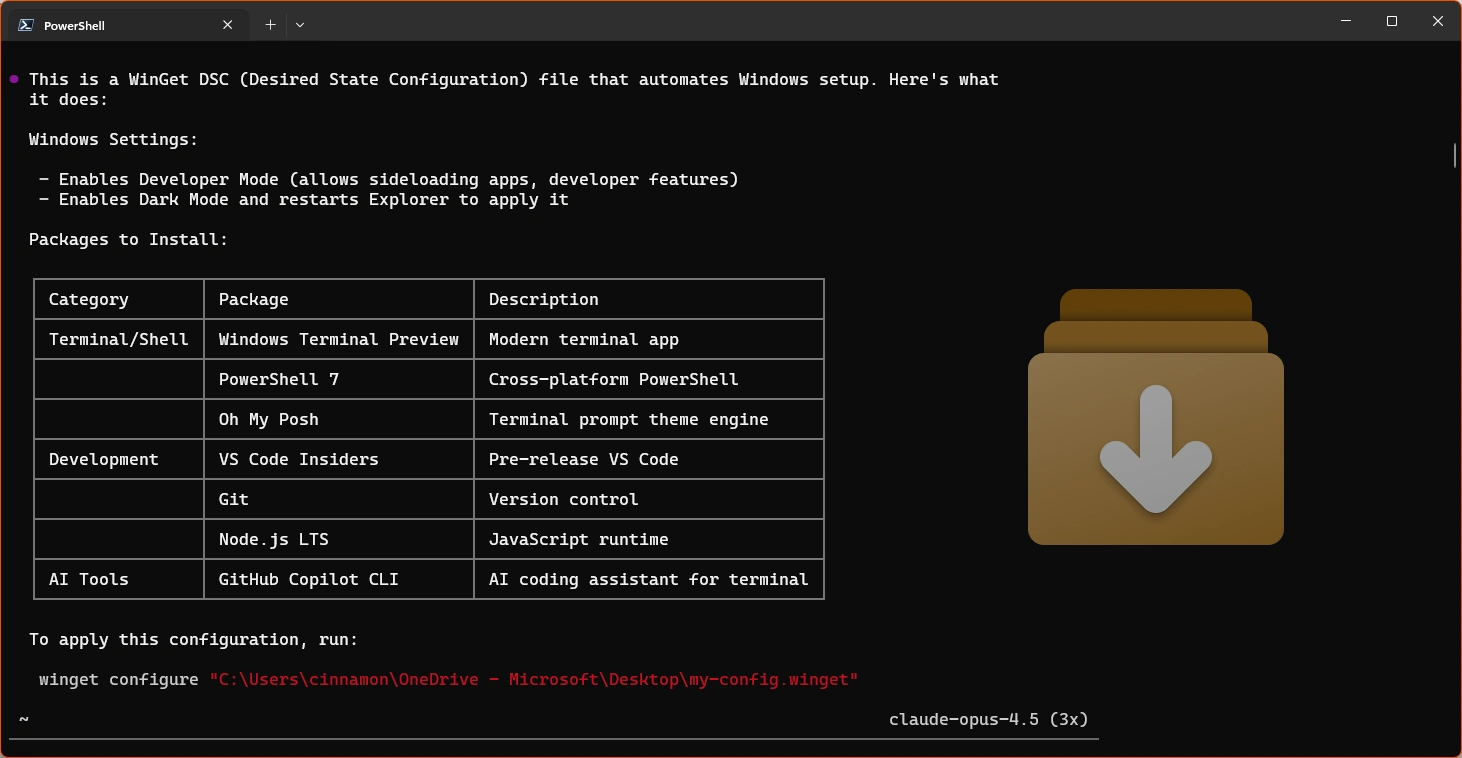
Explaining configs
Found a config file in a repo and not sure what it does? Paste it and ask:
“Explain what this winget configuration does and what will be installed”
This is super helpful when you’re onboarding to a new project.
The export command: Reverse-engineer your setup
One of my favorite features is winget configure export. It captures your current machine state so you can recreate it later:
# Export your entire package configuration
winget configure export -o my-machine.winget --all
# Export just one package's config
winget configure export -o vscode.winget --package-id Microsoft.VisualStudioCode
This is great for:
- Backing up your current setup before a fresh install
- Creating a config from a machine that’s already “just right”
- Sharing your exact environment with teammates
Store configs in your repos
For project-specific setups, store your config in the repo at .config/configuration.winget. When new contributors clone your project, they can run:
winget configure -f .config/configuration.wingetThis way, they’ll have the exact same environment as everyone else.
My configuration file
Here’s what my personal dev setup config looks like:
# yaml-language-server: $schema=https://aka.ms/configuration-dsc-schema/0.2
properties:
  configurationVersion: 0.2.0

  resources:
    # Enable Developer Mode and dark mode
    - resource: Microsoft.Windows.Settings/WindowsSettings
      directives:
        description: Enable Developer Mode
        allowPrerelease: true
        securityContext: elevated
      settings:
        DeveloperMode: true

    - resource: Microsoft.Windows.Developer/EnableDarkMode
      directives:
        description: Enable dark mode
        allowPrerelease: true
      settings:
        Ensure: Present
        RestartExplorer: true

    # Terminal and shell
    - resource: Microsoft.WinGet.DSC/WinGetPackage
      directives:
        description: Install Windows Terminal Preview
      settings:
        id: Microsoft.WindowsTerminal.Preview
        source: winget

    - resource: Microsoft.WinGet.DSC/WinGetPackage
      directives:
        description: Install PowerShell 7
        securityContext: elevated
      settings:
        id: Microsoft.PowerShell
        source: winget

    - resource: Microsoft.WinGet.DSC/WinGetPackage
      directives:
        description: Install Oh My Posh
      settings:
        id: JanDeDobbeleer.OhMyPosh
        source: winget

    # Development tools
    - resource: Microsoft.WinGet.DSC/WinGetPackage
      directives:
        description: Install Visual Studio Code Insiders
        securityContext: elevated
      settings:
        id: Microsoft.VisualStudioCode.Insiders
        source: winget

    - resource: Microsoft.WinGet.DSC/WinGetPackage
      id: vsPackage
      directives:
        description: Install Visual Studio 2026
        securityContext: elevated
      settings:
        id: Microsoft.VisualStudio.Enterprise
        source: winget

    - resource: Microsoft.VisualStudio.DSC/VSComponents
      dependsOn:
        - vsPackage
      directives:
        description: Install .NET workload
        allowPrerelease: true
        securityContext: elevated
      settings:
        productId: Microsoft.VisualStudio.Product.Enterprise
        channelId: VisualStudio.18.Release
        components:
          - Microsoft.VisualStudio.Workload.ManagedDesktop

    - resource: Microsoft.WinGet.DSC/WinGetPackage
      directives:
        description: Install .NET SDK 10
        securityContext: elevated
      settings:
        id: Microsoft.DotNet.SDK.10
        source: winget

    - resource: Microsoft.WinGet.DSC/WinGetPackage
      directives:
        description: Install Azure Developer CLI
      settings:
        id: Microsoft.Azd
        source: winget

    - resource: Microsoft.WinGet.DSC/WinGetPackage
      directives:
        description: Install Git
        securityContext: elevated
      settings:
        id: Git.Git
        source: winget

    - resource: Microsoft.WinGet.DSC/WinGetPackage
      directives:
        description: Install Node.js
        securityContext: elevated
      settings:
        id: OpenJS.NodeJS.LTS
        source: winget

    # AI tools
    - resource: Microsoft.WinGet.DSC/WinGetPackage
      directives:
        description: Install GitHub Copilot CLI
      settings:
        id: GitHub.Copilot
        source: winget
Feel free to use this as a starting point and customize it for your needs!
Cheers!
WinGet Configuration has genuinely changed how I think about machine setup. It’s version-controlled, repeatable, and shareable. Combined with GitHub Copilot CLI for generating and understanding configs, it’s never been easier to get a new machine ready for development.
If you have questions or want to share your own configuration files, find me on Bluesky (@kaylacinnamon) or X (@cinnamon_msft)!
Got any top tips on you handle dev machine configuration? Let us know in the comments!


Well I'm disappointed. I used this:
winget configure export -o my-machine.winget --all
To export the configuration of my entire machine, with a view to setting up a similar machine.
What I got was 179 "Installed package is not available from any source" messages, including several critical developer tools such as Git, Python 3.13, Notepad++, DBeaver CE, TortoiseSVN, JetBrains ReSharper; plus at least one item in the .winget file that could potentially be bad to install on another machine, such as Nvidia.PhysX.
So, while WinGet might be an amazing tool, I suspect it will be more trouble than it's worth if...
Eport it as json, store it in mongo, add comments to it, fork it.
winget configure export -o my-machine.winget –all; (Get-Content my-machine.winget -Raw | ConvertFrom-Yaml).resources | % { [pscustomobject]@{ _id=(“$($_.type):$($_.name ?? [guid]::NewGuid())”); kind=”dsc.resource”; raw=($_ | ConvertTo-Json -Depth 20 | ConvertFrom-Json); notes=@{}; history=@{} } } | ConvertTo-Json -Depth 10 | Set-Content my-machine.dsc.json -Encoding UTF8
I exported my machine's configuration and then loaded the .winget file into VSCode to see what it looked like. The generated file doesn't line up with the documented format given here (https://learn.microsoft.com/en-us/windows/package-manager/configuration/create). As an example the documentation seems to have everything under `properties` including `assertions` and `resources`. But the generated file has no such parent element. I notice the tool (1.28.100-preview) is using schema v0.3 but the docs list v0.2. Not sure if this is the reasoning.
Also, VSCode identifies the file as a DSC file and then flags all the resource names as invalid because in DSC, it appears, resource...
There are some subtle differences in the WinGet 0.2 schema and the DSC v3 schema.
We've been working through some of the differences to get the correct references in place, but the WinGet Configuration engine does handle the errors rendered in VSCode using the JSON schema.
It's possible to have hybrid configurations with DSC v2 and DSC v3 resources, but there is additional complexity that comes with that scenario like the need to have the configuration file install the v2 resources on the system explicitly. Feel free to start a discussion over at the winget-cli repository if you're looking for some additional...
This is a joke right? You don’t setup a productive dev machine with stuff like this. All you are doing is installing some software which in a managed corp environment does the corp for you.