
XBOX PC Remote Tools are Now Available in Unity
XBOX PC Remote Tools are now available in Unity, allowing you to iterate on your game on a remote Windows-powered device directly in the Unity Editor

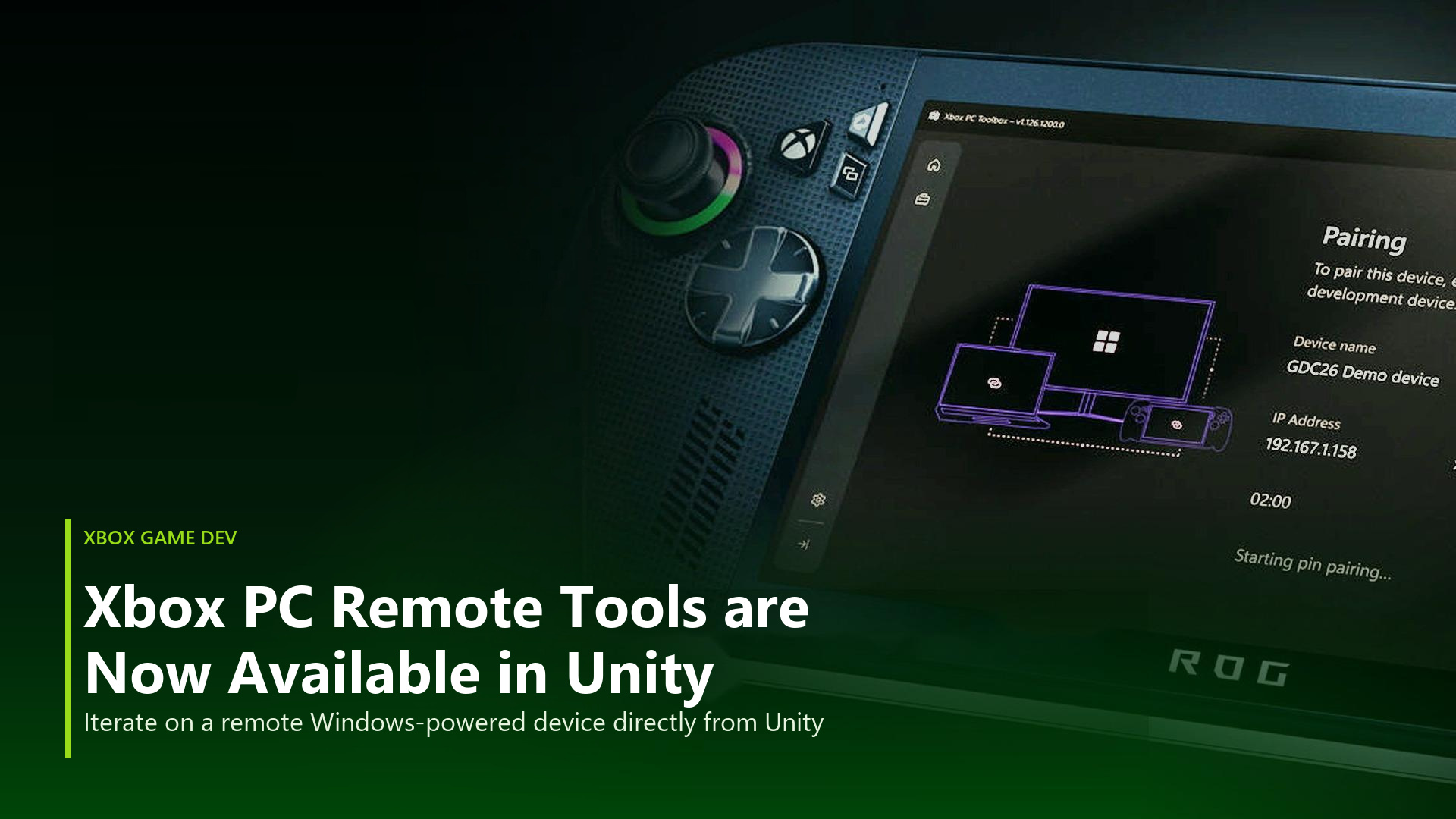
Unity 6.5 now ships with built-in support for the XBOX PC Remote Tools, giving developers one-click remote build, deployment, and iteration to any Windows machine, directly from the Unity Editor. With this release, you can turn any Windows PC on your network into a remote iteration target, deploy your build to it with a single click. No manual file copies, no custom scripts, no separate pipelines.
This integration was built by Unity, in close partnership with the XBOX team, and it wraps XBOX’s remote iteration technology through the XBOX PC Remote Tools API. The result is a streamlined, native workflow that meets Unity developers right where they already work.
XBOX PC Remote Tools support is available to all Unity license tiers and does not require the Microsoft GDK to use. Any Unity developer building a Windows-based game, regardless of PC store or Windows device form factor being targeted, can use this to remotely iterate on any Windows PC.
Why this matters
Iterating across multiple PCs has always been more challenging than it should be. If you wanted to test a build on a second desktop, a teammate's laptop, or a handheld, the typical workflow meant building locally, copying files by USB drive or over a share, and then launching the build on the target device. Every iteration added friction, and that friction compounds across a team validating a game on many hardware configurations.
The XBOX team built the XBOX PC Remote Tools to solve exactly this problem for Windows game development: a reliable way to pair, deploy and debug games on remote Windows devices. With Unity 6.5, that capability is now a seamless part of the Unity Editor. You stay in the Editor, you pick your remote device, and you iterate. Testing on Windows-powered handhelds or a Windows desktop in your lab environment becomes a normal part of your day instead of an event with heavy friction.
The XBOX PC Remote Tools aim to make it easier to build and test for Windows and XBOX on PC, built to support integrations directly within engines like Unity.
What's new in Unity 6.5
The XBOX PC Remote Tools integration is available directly from the Windows build settings in Unity 6.5. Key capabilities include:
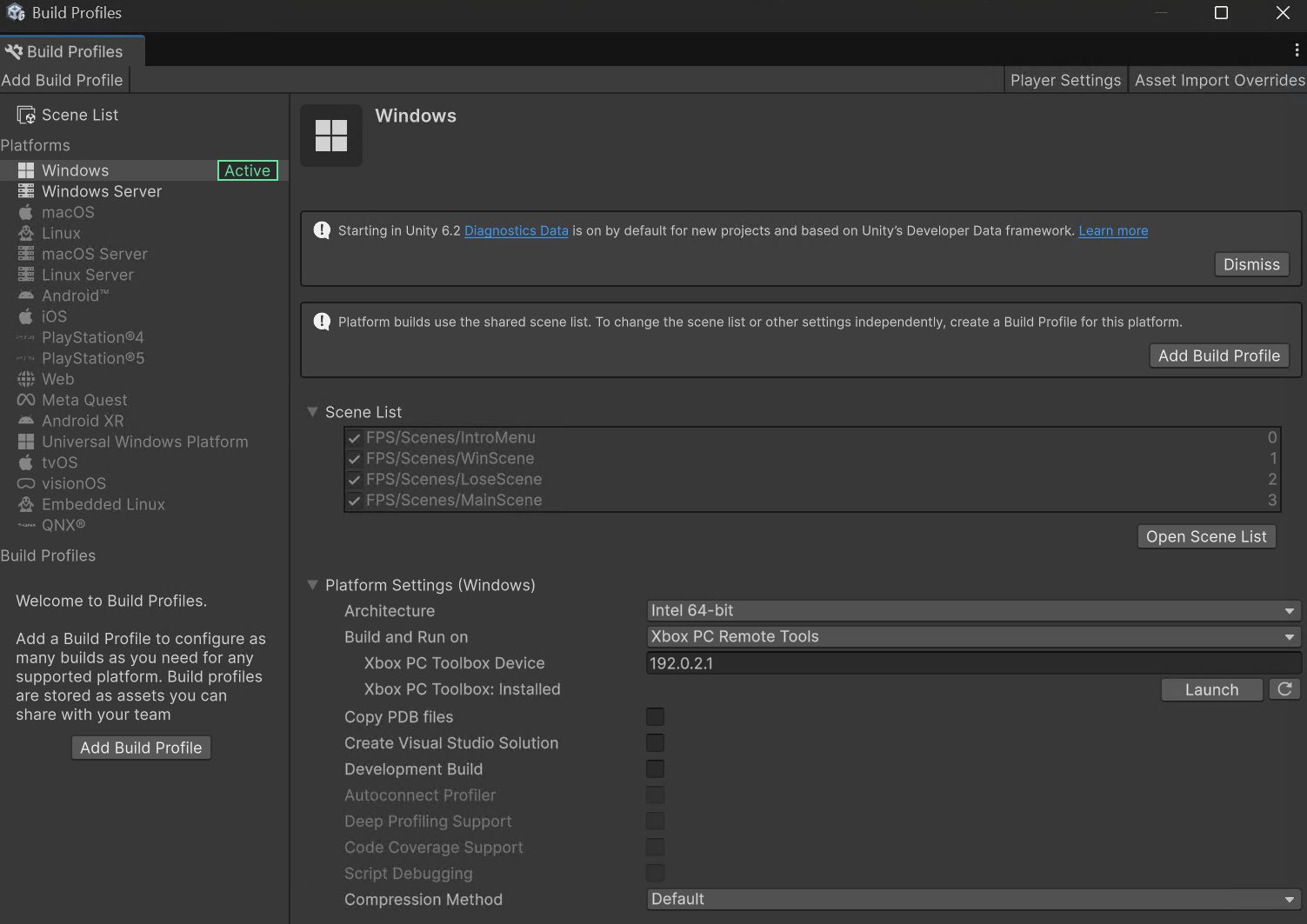
- One-click remote deployment: Select XBOX PC Remote Tools as the deploy target in your Windows Build Profile, enter the IP address of a paired device, and select Build and Run. Unity builds, deploys, and launches your application on the remote machine.
- Full and incremental builds: Iterate quickly with incremental deployment, so only what changed is sent to the target device.
- Remote debugging and profiling: Attach Unity's Debugger and Profiler to the remote session, just like you would with any networked player, for full visibility into how your build behaves on the target hardware.
- Test on real form factors: Deploy to Windows desktops, laptops, and Windows-powered handhelds to validate performance and input across the devices your players use.
- No GDK or special license required: The feature is available to all Unity license tiers and works for any Unity developer targeting Windows. The Microsoft GDK is not required to use it.
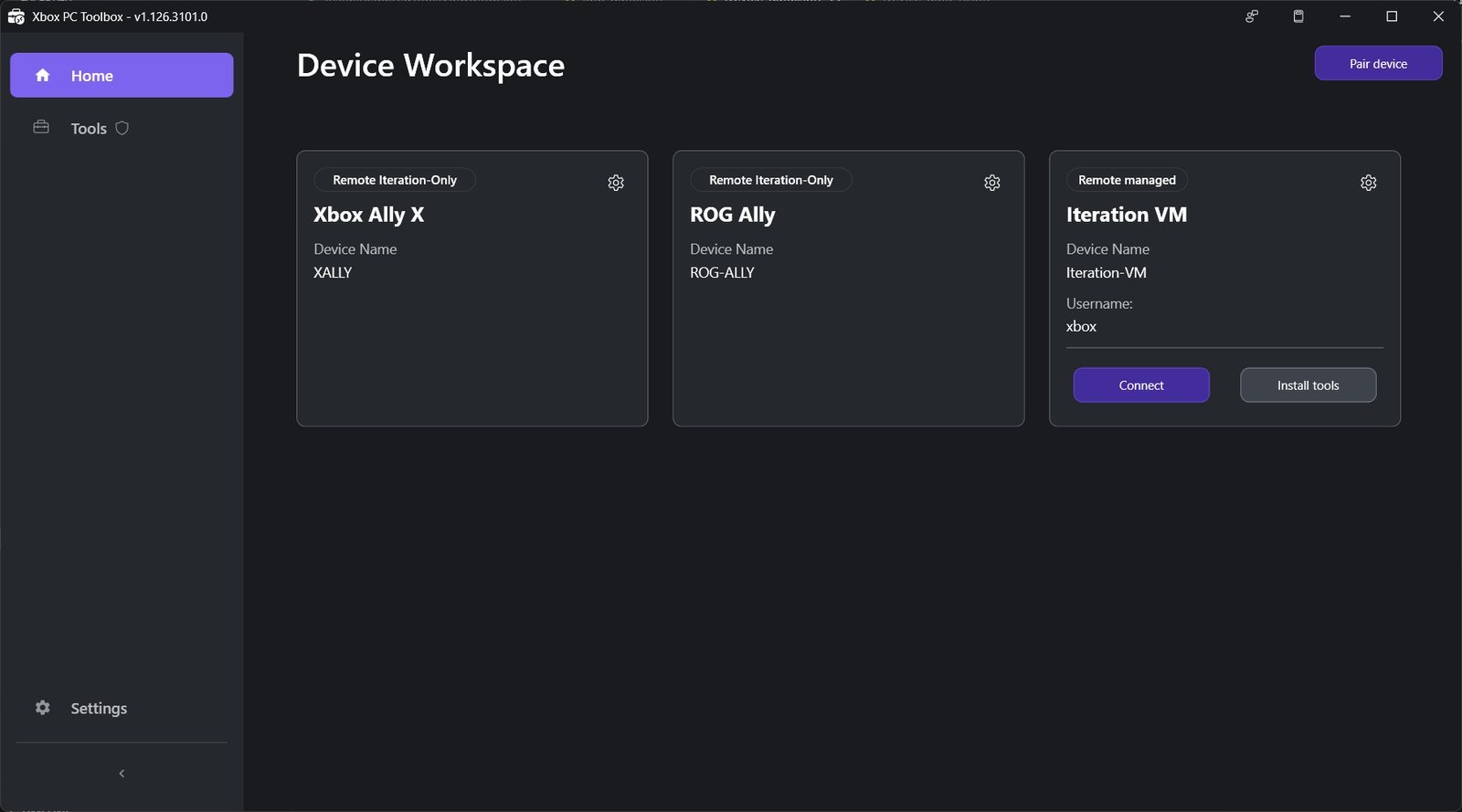
Under the hood, the integration is powered by the XBOX PC Toolbox, the core component of the XBOX PC Remote Tools that you use to pair and manage remote Windows devices. Unity wraps the XBOX PC Remote Tools API so that pairing, deployment, and launch all flow through a single, supported pipeline.
How to get started
Getting up and running takes only a few steps:
- Install Unity 6.5 and open or create a project that targets the Windows platform.
- Install the XBOX PC Toolbox on both your development machine and your target device. You can install it from the Microsoft Store ahead of time or install it on your development machine directly from the Build Profile in the Unity Editor during setup.

- Pair your devices in the XBOX PC Toolbox app and note the IP address of the target device.
- Configure your Build Profile. In the Unity Editor, open File > Build Profiles, select or create a Windows build profile, and choose XBOX PC Remote Tools in the Build and Run on dropdown.
- Enter the target device IP address in the XBOX PC Toolbox Device property. Unity saves this as an Editor preference for future sessions.
- Select Build and Run. Unity builds your Windows application, deploys it to the remote device, and launches it.
That’s it. From there, every iteration is one click away on whichever Windows device you want to test.