Windows Subsystem for Linux

Use Linux distributions, tools, and workflows directly on Windows, without managing a traditional virtual machine or dual-boot setup.


Why WSL Linux tooling, on the machine you already use WSL runs Linux applications, utilities, and Bash tools directly on Windows. Compare it with virtual machines, remote environments, and containers to choose the right setup for your work.
Instead of a VM or dual boot Both systems, at the same time Run Linux beside Windows and share files without rebooting. Choose a full VM when you need strict isolation, another kernel, or an exact production image. Instead of a remote Linux box Your code stays local Keep builds, debugging, and files on your machine, even offline. Choose a remote environment when you need more compute or specialized hardware. Alongside containers Build with WSL and containers Use WSL as your development environment and its new WSL container feature to have a powerful local Linux development environment.

What working with WSL looks like

Set up WSL

Install WSL and a Linux distribution with one command. Create your Linux username and password on first launch, and add distributions later.

Use your development tools

Keep Visual Studio Code and Windows Terminal on Windows while your toolchain and debugger run in Linux. Use the same environment with Git and Docker Desktop.

Manage WSL for teams

Configure resource, network, and firewall settings, and apply organization policies to help teams maintain consistent development environments.

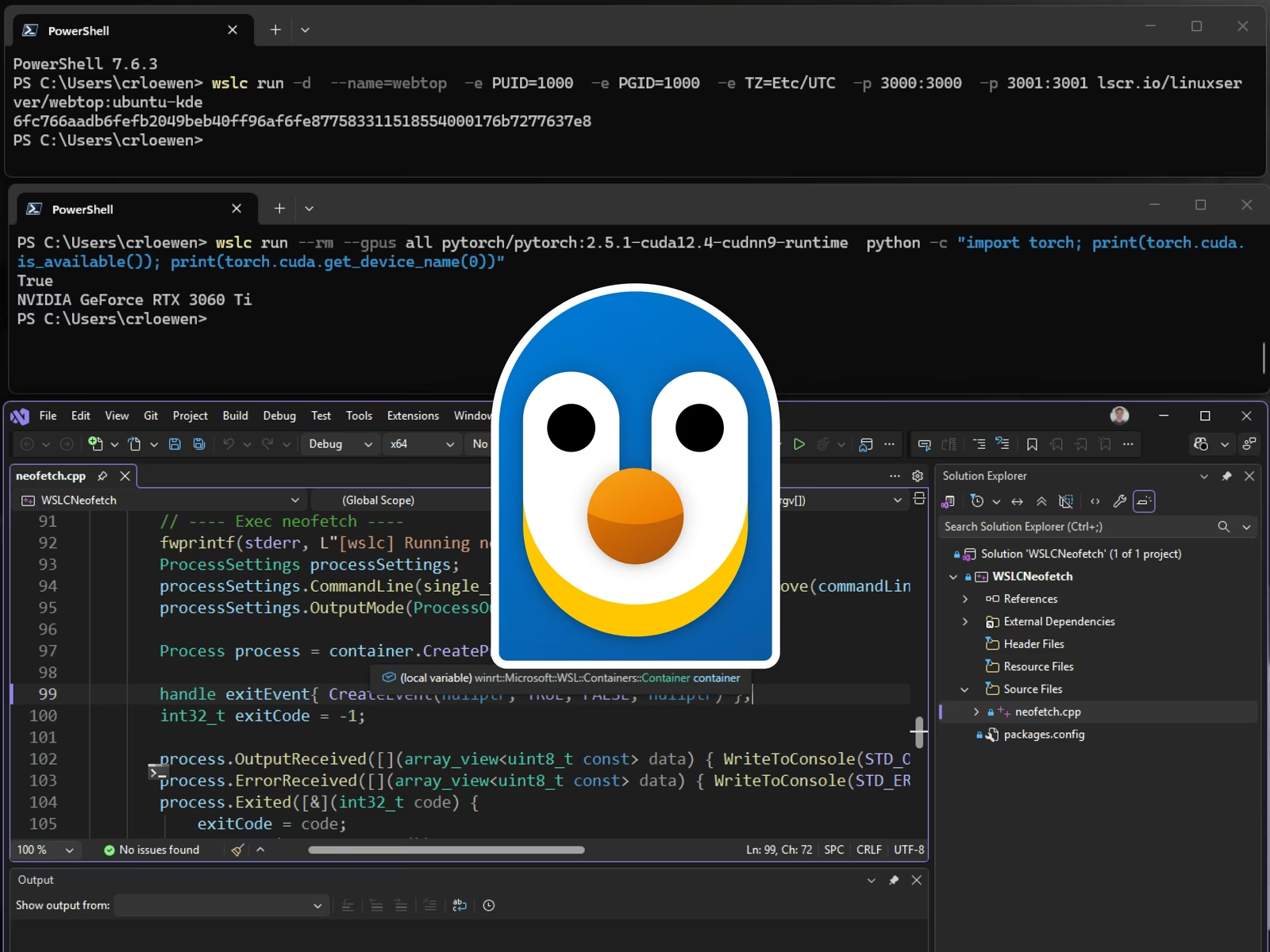
WSL container Linux containers, built right into Windows WSL containers add a Linux container CLI and an API to Windows, so you can build, run, and manage Linux containers without installing a separate container engine.
Generally available Run your first container Run wsl --update to get the wslc command, then start a container with `wslc.exe` using the same syntax you're used to, for example wslc run --rm -it ubuntu:latest bash. Containers get GPU access for CUDA and other accelerated workloads, and Visual Studio Code dev containers can use wslc as their container driver by setting the Docker Path setting to wslc. Get started with WSL containers Watch the Build 2026 session
Command line

A container CLI in the box

Use wslc to run, build, debug, and test Linux containers. This release adds container restart, file copy in and out, system info, network attach and detach, healthchecks, a configurable stop timeout, a configurable storage path, and an event stream.

Read the CLI documentation
For your app

Call containers from Windows code

A NuGet package brings container support to C, C++, and C# applications, so a Windows app can run Linux code as part of its own logic. The API integrates with MSBuild and CMake, so container build and deploy steps become part of your normal build.

Read the API reference
For your organization

Managed and monitored

The Microsoft Defender for Endpoint plugin reports container activity alongside your existing Windows signals. Administrators can allow or block container access and set a registry allowlist, so only approved images can be pulled.

Read the enterprise guidance
Under the hood

Faster files and better networking

WSL containers use the virtiofs file system, which Microsoft measures as twice as fast for Windows file access, and a networking mode called consomme that relays Linux traffic through Windows so containers inherit your existing network and security configuration. Memory is also returned to Windows more steadily when a container is idle.

Planned

Multi-container workflows are next

Support for running your existing compose files is the most requested feature and the current focus of the team. Work also continues on the WSL fundamentals underneath, which benefits WSL distributions and other container tools built on WSL.

Request and upvote features
Get started Install WSL with one command On Windows 11, or Windows 10 version 2004 and higher (build 19041 and higher), open PowerShell as administrator and run wsl --install, then restart your machine. That enables the features WSL needs and installs Ubuntu, the default distribution. To pick a different one, run wsl --list --online to see what is available, then wsl --install -d followed by the distribution name. Want guided help? Connect your AI assistant to the Microsoft Learn MCP server. It can explain each step and suggest commands based on current Microsoft documentation. Review and run each command yourself. This can help if you are new to Linux tooling or an installation does not go as planned. Install WSL Set up the Microsoft Learn MCP server
Keep going

Documentation, tooling, and releases

Learn and set up

  • WSL documentation
  • Install WSL
  • Set up a WSL development environment
  • Basic WSL commands
  • Tools and advanced workflows

  • Develop in WSL with VS Code
  • Run Linux containers with WSL
  • Run Docker containers on WSL
  • GPU-accelerated workloads
  • Advanced settings configuration
  • Enterprise, open source, and releases

  • WSL for your enterprise
  • WSL on GitHub
  • WSL Container Desktop (community)
  • WSL releases
  • WSL FAQ