
Building for the Future: Simplifying Development with Xbox PC Remote Tools
Pair, deploy, and debug PC games on remote Windows devices with ease with the Xbox PC Remote Tools.
.jpg)
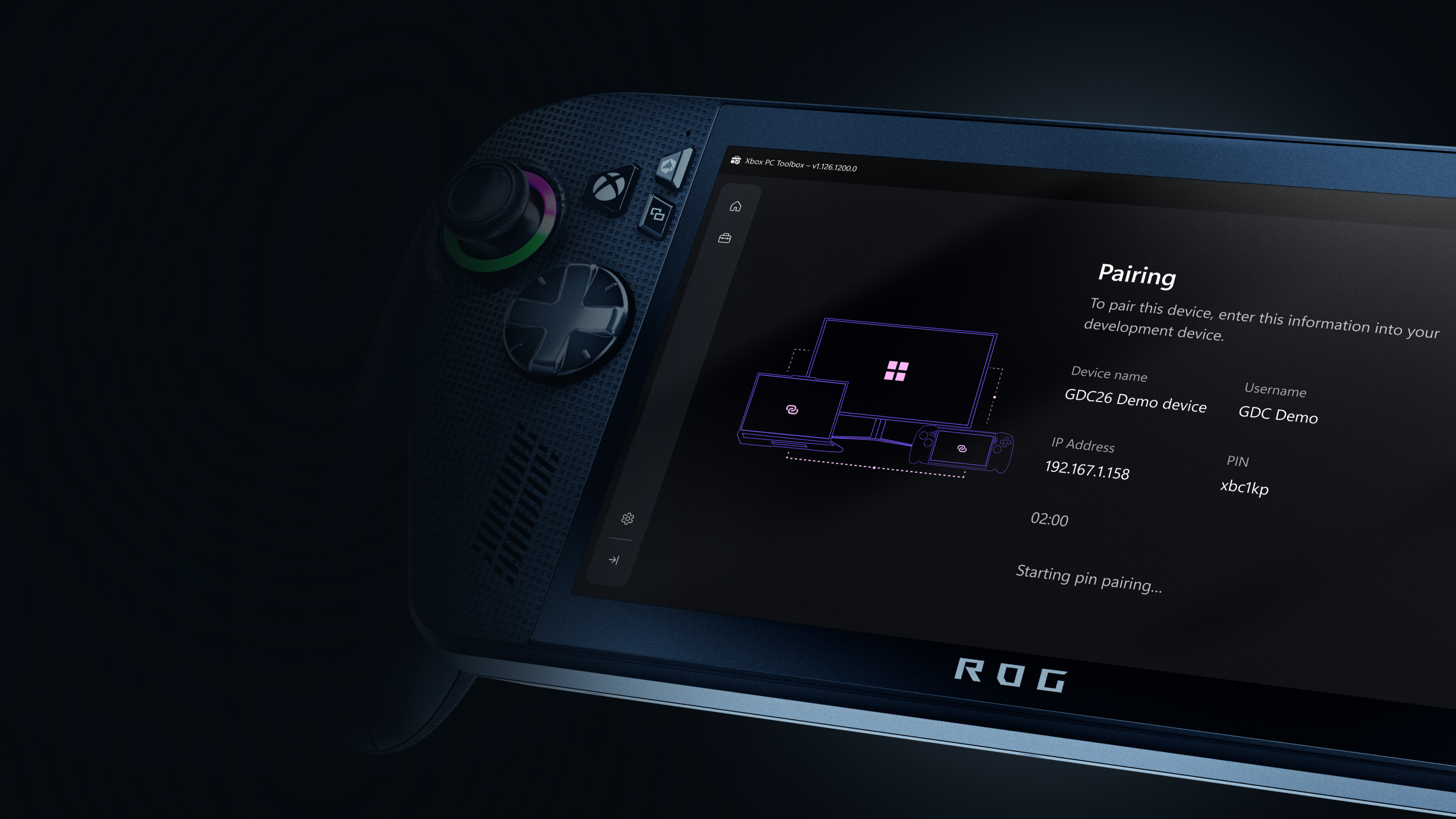
Struggling to test your game on a Windows Powered Handheld or Windows Desktop in your test lab because managing them from your Dev PC is a nightmare? Tired of spending hours just to get your dev environment ready for incremental deployment, debugging and testing?
Developing games on remote Windows devices, from Windows Powered Handhelds to Windows Desktop PCs, just got a lot easier. We’re excited to announce that the Xbox PC Remote Tools are now available in Public Preview as of March 2026. These tools include features that streamline your workflow across deploying, testing, and debugging your PC games to remote Windows devices, directly from your development PC, so you can spend less time on setup and more time building great games.
The Xbox PC Remote tools are designed to streamline your development for Windows games, regardless of which storefront you ship on, and do not have any required dependencies on the Microsoft Game Development Kit (GDK) or the Xbox PC App.
What are the Xbox PC Remote Tools?
The Xbox PC Remote Tools are a suite of developer-focused tools, designed to help you seamlessly pair with and iterate on your remote Windows devices.
- Xbox PC Toolbox: a user-friendly app to set up and pair remote Windows devices
- Xbox PC Remote Debugger: a Visual Studio extension for incremental deployment and debugging over a secure communication channel
- Xbox PC Remote Iteration Command Line Tools: for deploying and launching game builds via scripts or CI pipelines
- Xbox PC Remote Iteration APIs: for integrating remote workflows into your engine or tools (Note – the APIs are currently in preview, and we will share more details on them in the near future. Please reach out to your Microsoft representative if you want more details on the Xbox PC Remote Iteration APIs and their availability.)
In short, these tools enable seamless pairing, deployment, and debugging, thereby speeding up your iteration cycle.
How can I integrate the Xbox PC Remote Tools into my workflow?
| Workflow Step | Before | With Xbox PC Remote Tools |
|---|---|---|
| Device Setup & Pairing | Manual installs, firewall tweaks, inconsistent setup across devices | Secure provisioning and device pairing in minutes via the Xbox PC Toolbox |
| Deploying Builds | Full builds copied over network, slow and error-prone | Consistent incremental deployment sends only the changed files, dramatically speeding up iteration |
| Debugging on Remote Devices | Manual, multi-step download, installation, and configuration required. Secure connection not available in all scenarios | Easily acquire the Xbox PC Remote Debugger in the Visual Studio marketplace. Press F5 in Visual Studio to deploy, launch, and attach debugger |
| Managing and Iterating with Multiple Remote Devices | No centralized view, hard to track paired devices or manage connections | The Xbox PC Remote Tools provide an easy way to view and iterate on paired devices |
| Automation & CI/CD Integration | No consistent tooling or APIs for scripting remote workflows | Xbox PC Remote Iteration command-line tools and APIs enable integrations in your tool chains and engine workflows |
Try it out!
Step 1: Provision & pair
Install and launch the Xbox PC Toolbox to configure your development PC and pair with your target Windows devices. For detailed instructions on pairing and provisioning your devices via the Xbox PC Toolbox app, click here to learn more.
Step 2: Deploy & Debug
Add the Xbox PC Remote Debugger extension to your Visual Studio 2022 or 2026 IDE. Hit F5 in Visual Studio to build your game, deploy it to the remote device, and start debugging.
Step 3: Iterate
Make changes to your game on your dev PC and re-deploy only the files you modified to the remote device.
Step 4: Integrate remote iteration workflows into your studio’s toolchain
The wdRemote and wdEndpoint command line tools, and the Xbox PC Remote Debugger Visual Studio extension are built using a public API available on nuget.org. Download the NuGet package and use the remote iteration APIs to integrate deployment and launch workflows into your custom tool chain.
Step 5: Provide feedback
Share your feedback in Feedback Hub (accessible via the Send Feedback icon in the Xbox PC Toolbox) or contact your Microsoft representative.
Learn More
Visit Xbox PC Remote Tools documentation for more information and how-to guides. Check out GDC 2026: Future‑Proof Your Game: Streamlined Workflows for a Multi‑Device World to read more on best practices.